

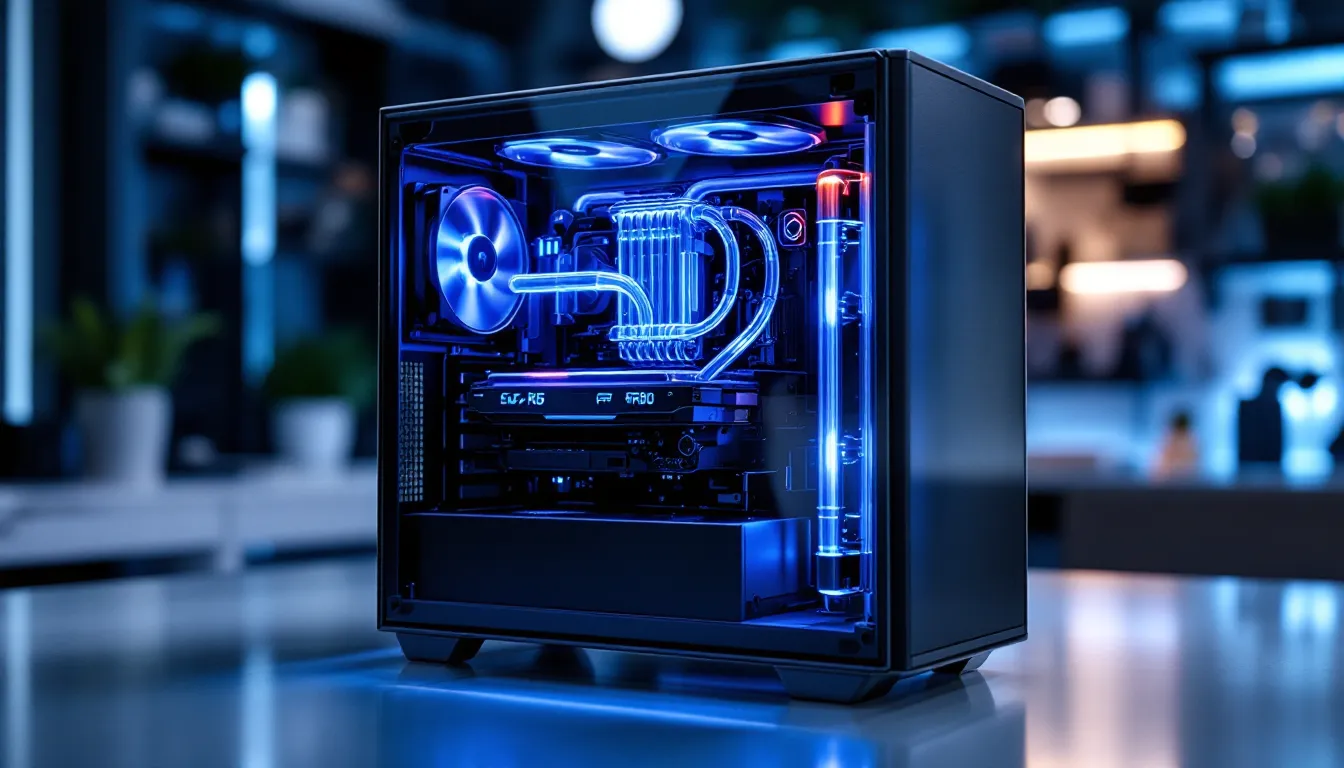
In 2026, the gap between good gaming and great gaming often comes down to thermals. You can have a beast of a GPU and a top-tier CPU, but if they’re throttling under load because of heat, you’re leaving frames on the table. That’s where liquid cooling enters the scene, a cooling solution that’s evolved from enthusiast-only territory into a mainstream consideration for anyone serious about sustained performance and quiet operation.
Whether you’re eyeing an extreme water cooled gaming pc that’s built for overclocking marathons or simply want a gaming pc water cooled setup that stays whisper-quiet during your late-night sessions, understanding the options, installation, and real-world benefits is key. This guide breaks down everything from how liquid cooling actually works to choosing the right system for your build, maintenance expectations, and whether it’s worth the investment for your specific gaming setup.
Key Takeaways
- A liquid cooled gaming PC uses water-based coolant to absorb and dissipate heat far more efficiently than air cooling, preventing thermal throttling and delivering 5-10% better performance in demanding titles.
- All-in-one (AIO) liquid coolers offer the best balance for most gamers, with easy installation, minimal maintenance, and prices starting at $100-$150, while custom loops require expertise but unlock maximum cooling potential for high-end CPUs and GPUs.
- Liquid cooling reduces fan noise to 30-35 dBA under full load—comparable to ambient room noise—making it ideal for streaming, recording, or distraction-free late-night gaming sessions.
- Custom liquid cooled gaming PC setups enable sustainable overclocking that air coolers cannot match, allowing an Intel i9-14900K to hold 5.8 GHz all-core where air cooling taps out around 5.5 GHz.
- Invest in liquid cooling if running high-TDP components (i7/i9, RTX 4080+), overclocking, prioritizing silent operation, or chasing extreme performance; stick with air cooling for budget builds or mid-range CPUs without overclocking goals.
- Proper maintenance of a custom liquid cooled gaming PC requires coolant replacement every 6-12 months, while AIOs are sealed units rated for 5-7 years with only periodic dust cleaning needed.
What Is a Liquid Cooled Gaming PC?
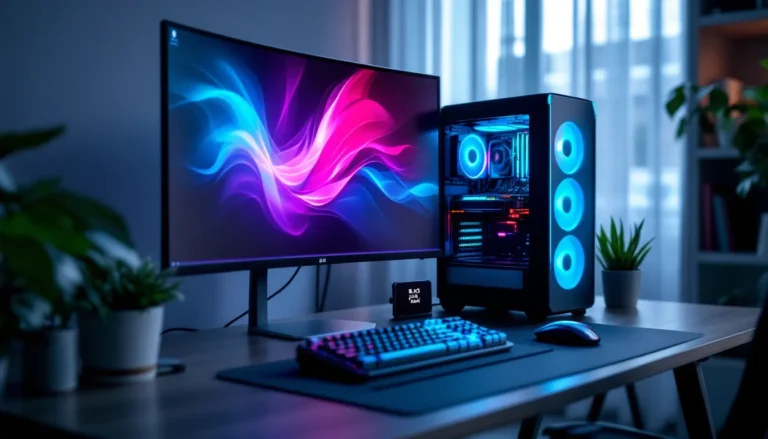
A liquid cooled gaming PC uses coolant, typically a mix of distilled water and additives, circulated through a closed loop to absorb heat from components like the CPU and GPU, then dissipates that heat through a radiator. Instead of relying solely on heatsinks and fans blowing air over hot surfaces, liquid takes on the thermal load and moves it away more efficiently.
The concept isn’t new. Data centers and high-performance computing have used liquid cooling for decades. But the gaming space adopted it as GPUs and CPUs pushed thermal envelopes harder, especially with modern multi-core architectures and ray-tracing workloads that generate serious heat.
How Liquid Cooling Works
At its core, liquid cooling relies on a pump that circulates coolant through a loop. The coolant flows through a water block, a metal component mounted directly on your CPU or GPU with maximum surface contact. As the coolant passes over the heated metal, it absorbs thermal energy.
Next, the now-warm coolant travels through tubing to a radiator, where it passes through thin channels while fans blow air across the radiator’s fins. This airflow dissipates heat into the ambient air, cooling the liquid. The cooled coolant then returns to the pump, and the cycle repeats.
The efficiency comes from water’s superior thermal conductivity compared to air. According to testing from Tom’s Hardware, liquid cooling can handle higher heat loads with lower noise levels than equivalent air coolers, especially under sustained loads like long gaming sessions or rendering tasks.
Liquid Cooling vs Air Cooling: Which Is Better for Gaming?
Air cooling uses heatsinks and fans attached directly to your CPU or GPU. It’s simple, reliable, and often cheaper. But it has limits, large tower coolers can be bulky, and performance plateaus once you max out heatsink surface area and fan speed.
Liquid cooling scales better. A gaming pc with water cooling can handle higher TDP (thermal design power) components without breaking a sweat. Radiators can be sized up (240mm, 360mm, 420mm) to increase cooling capacity without adding bulk to the component itself.
For most mid-range gaming setups, a good air cooler is plenty. But if you’re running a high-end CPU like an Intel Core i9-14900KS or AMD Ryzen 9 9950X, or you’re overclocking, liquid cooling provides headroom that air can’t match. Plus, it’s noticeably quieter, fans on radiators can spin slower because the liquid does the heavy lifting.
Types of Liquid Cooling Systems for Gaming PCs
Not all liquid cooled gaming pcs are created equal. There are two main paths: all-in-one coolers and custom loops. Each has trade-offs in complexity, cost, and cooling potential.
All-in-One (AIO) Liquid Coolers
AIO coolers are pre-assembled, closed-loop systems. You get a pump/water block combo, tubing, and a radiator with fans, all sealed and filled with coolant from the factory. Popular models include the Corsair iCUE H150i Elite LCD (360mm), NZXT Kraken Z73 RGB, and Arctic Liquid Freezer III series.
Pros:
- Easy installation, mount the water block like a standard cooler, screw the radiator into your case.
- No maintenance in most cases: coolant is sealed and rated for 5-7 years.
- Wide compatibility with most modern CPUs.
- Entry price around $100-$250 depending on radiator size and RGB features.
Cons:
- Limited to CPU cooling in most setups (though some support GPU mounting with brackets).
- Fixed tubing length can restrict radiator placement.
- Pump failure means replacing the entire unit.
AIOs hit a sweet spot for gamers who want the benefits of gaming pc water cooling without the complexity. They’re especially effective in builds targeting high refresh rate gaming at 1440p or 4K where CPU temperatures can spike during physics-heavy scenes or CPU-bound titles like CS2 or Starfield.
Custom Loop Liquid Cooling
A custom liquid cooled gaming pc involves selecting individual components, pump, reservoir, CPU and GPU water blocks, radiator(s), tubing, fittings, and coolant, and assembling them into a personalized loop. Brands like EK Water Blocks, Corsair Hydro X, and Alphacool dominate this space.
Pros:
- Cool both CPU and GPU in the same loop using a water cooling kit for gpu.
- Maximum thermal performance: custom loops with 360mm+ radiators and quality blocks outperform AIOs.
- Aesthetic customization, hard tubing, RGB coolant, custom reservoir designs.
- Expandable, add more blocks or radiators over time.
Cons:
- Significantly more expensive: a full custom loop starts around $500 and can exceed $1,000.
- Complex installation requiring careful planning, leak testing, and patience.
- Ongoing maintenance: coolant flushes every 6-12 months, monitoring for leaks, potential pump/block upgrades.
Custom loops are for enthusiasts chasing extreme performance benchmarks or those who want a showpiece build. If you’re running a 4090 Ti and a top-tier CPU both overclocked, a custom loop keeps temps in check where air and AIOs struggle.
Benefits of Liquid Cooling for Gaming Performance
Liquid cooling isn’t just about lower temps for their own sake, it translates to tangible in-game benefits and system longevity.
Lower Temperatures and Thermal Throttling Prevention
Modern GPUs and CPUs use thermal throttling to protect themselves from damage. When a chip hits a set temperature threshold (often 90-100°C for CPUs, 80-90°C for GPUs), it reduces clock speeds to cool down. This directly impacts frame rates.
A gaming pc water cooled setup keeps components well below those limits. For example, a Ryzen 9 9950X under air cooling might hit 85°C during Cyberpunk 2077 with path tracing enabled, causing slight clock drops. The same CPU with a 360mm AIO stays around 68-72°C, maintaining boost clocks and delivering 5-10% better 1% lows, the metric that matters for smooth, stutter-free gameplay.
GPU water blocks show even bigger gains. Testing from independent reviewers shows an RTX 4090 under air cooling averaging 78°C at load, while a custom loop drops that to 52-58°C. The GPU maintains higher boost bins longer, translating to 3-7 extra FPS in demanding titles.
Quieter Operation During Intense Gaming Sessions
Air coolers rely on high fan RPMs to dissipate heat. Under load, they can hit 40-50 dBA, audible even through a headset. Liquid cooling spreads the thermal load across a larger radiator surface, letting fans spin at lower RPMs for the same cooling effect.
Most liquid cooled gaming pcs run 30-35 dBA under full load, comparable to ambient room noise. If you’re streaming or recording gameplay, that difference is huge, your mic won’t pick up fan whine, and you won’t be distracted during clutch moments in ranked matches.
Enhanced Overclocking Potential
Overclocking pushes voltage and frequencies beyond stock settings for extra performance. It also generates more heat. Air cooling hits a wall quickly: push too hard, and temps skyrocket, leading to instability or shutdowns.
Liquid cooling extends that ceiling. An Intel Core i9-14900K can sustain an all-core 5.8 GHz overclock under a custom loop where air cooling taps out around 5.5 GHz. That’s meaningful in CPU-bound scenarios like competitive Valorant at 360 Hz or simulation games like Cities: Skylines II.
GPU overclocking benefits similarly. Memory and core overclocks that would crash under air cooling stay stable with a water cooling kit for gpu, netting another 5-8% performance in shader-heavy games.
Choosing the Right Liquid Cooling Solution for Your Build
Picking the right liquid cooling setup depends on your hardware, case, and budget. Here’s how to narrow it down.
Compatibility with Your CPU and GPU
Most AIO coolers support current Intel (LGA 1700) and AMD (AM5, AM4) sockets out of the box. Always verify the mounting kit matches your motherboard before buying. Some older AIOs need separate brackets for newer sockets.
For gaming pc water cooling that includes the GPU, you need a custom loop. Check that water blocks exist for your specific GPU model, reference PCB designs have the most options, while custom AIB cards (like ASUS ROG Strix or MSI Gaming X) may have limited or no water block availability. EK Water Blocks and Corsair maintain compatibility lists on their sites.
If you’re considering liquid cooling down the line when planning a gaming PC build, prioritize a GPU with reference PCB or known water block support.
Case Size and Radiator Placement Options
Radiator size dictates cooling capacity:
- 240mm (2x 120mm fans): Entry-level, good for mid-range CPUs (i5/Ryzen 5).
- 280mm (2x 140mm fans): Better surface area, handles higher-end CPUs comfortably.
- 360mm (3x 120mm fans): Sweet spot for high-end gaming: fits most mid-tower cases.
- 420mm (3x 140mm fans): Enthusiast-tier, requires full-tower cases.
Check your case specs. Many mid-towers support 360mm rads in the front or top, but clearance with RAM, motherboard VRM heatsinks, or GPU length can be tight. Measure twice, buy once.
For custom loops, plan your radiator placement early. Dual-rad setups (e.g., 360mm top + 280mm front) are common in extreme water cooled gaming pc builds cooling both CPU and GPU.
Budget Considerations: Entry-Level to Enthusiast Options
Here’s a rough breakdown as of early 2026:
Entry-Level AIO ($100-$150):
- 240mm coolers like Arctic Liquid Freezer II 240 or Cooler Master MasterLiquid ML240L.
- Adequate for Ryzen 5 7600X or Intel i5-13600K at stock.
Mid-Range AIO ($150-$250):
- 280mm/360mm units like Corsair iCUE H115i, NZXT Kraken X63.
- Handles i7/Ryzen 7 chips, moderate overclocking, RGB features.
High-End AIO ($250-$350):
- Premium 360mm/420mm with LCD screens, advanced RGB, quiet fans (Corsair H170i Elite Capellix, NZXT Kraken Z73).
- Best air-to-liquid performance in a closed-loop package.
Custom Loop Entry ($500-$800):
- Basic CPU-only loop with soft tubing, single 360mm rad, budget blocks.
- More cooling potential than AIOs, some aesthetic customization.
Custom Loop Enthusiast ($1,000-$2,000+):
- Dual radiators, CPU + GPU blocks, hard tubing, premium fittings, RGB reservoirs.
- Top-tier thermals, showcase-quality builds.
If you’re on a tight budget, a quality air cooler is better value than a cheap AIO. Once you’re spending $150+, gaming pc water cooling becomes worth considering for the performance and noise benefits.
Installing a Liquid Cooling System: What to Expect
Installation complexity varies dramatically depending on which type of liquid cooling you choose.
AIO Installation Process
AIO installation is straightforward if you’ve built a PC before. Here’s the typical flow:
- Mount the backplate: Attach the cooler’s backplate to the rear of your motherboard, aligning with your CPU socket.
- Apply thermal paste: A small pea-sized dot in the center of the CPU (or use pre-applied paste if included).
- Attach the pump/block: Secure the water block to the CPU using the provided screws and mounting bracket. Connect the pump power cable to the CPU_FAN header.
- Install the radiator: Mount the radiator with fans to your case, front, top, or rear depending on clearance. Make sure airflow direction is correct (intake vs. exhaust).
- Connect fans and RGB: Plug fan headers into motherboard or fan hub, and RGB cables into your RGB controller.
- Boot and configure: Power on, enter BIOS to verify pump speed, and use software (Corsair iCUE, NZXT CAM) to set fan curves and lighting.
Total time: 30-60 minutes for a first install. Experienced builders can knock it out in 20.
Common pitfall: Radiator clearance. Measure your case’s front/top rad support and account for fan thickness plus the radiator itself. Some cases list 360mm support but only with slim fans or no top-mounted motherboard heatsinks.
Custom Loop Setup Considerations
Custom loops are a multi-hour project requiring planning and patience. Key steps include:
- Component selection: Choose pump, reservoir (combo units are popular), CPU and GPU blocks, radiator(s), tubing (soft EPDM or hard acrylic/PETG), fittings, and coolant.
- Loop planning: Map your loop order. Common: Pump → CPU block → GPU block → Radiator → Reservoir → Pump. Draw it out to determine tubing lengths and fitting angles.
- Test fit: Dry-fit all components in the case. Adjust radiator and reservoir positions as needed. Mark tubing cuts if using hard tubing.
- Assembly: Install water blocks on CPU and GPU (remove stock coolers, clean surfaces, apply thermal paste/pads). Mount radiators, pump/res combo. Connect tubing with compression fittings.
- Leak test: Fill the loop with distilled water (not final coolant yet). Power the pump with a jumper or leak tester. Let it run 24 hours, checking all fittings for leaks.
- Final fill and bleed: Drain test water, refill with your chosen coolant (distilled water + biocide/inhibitor, or premix like EK CryoFuel). Power on, tilt the case to work out air bubbles.
- Monitor: Run stress tests (Prime95, FurMark) to verify temps and watch for issues.
Total time: 6-12 hours for a first build, spread over a weekend.
Pro tip: Order extra fittings and tubing. You will need them. And budget for a drain valve, it makes maintenance exponentially easier.
Maintenance and Longevity of Liquid Cooled PCs
One of the biggest questions around liquid cooling is maintenance. Here’s what you’re actually signing up for.
AIO Cooler Maintenance Requirements
AIOs are designed as “set and forget” units. The loop is sealed at the factory, and under normal use, you shouldn’t need to touch it for years. Most manufacturers rate them for 5-7 years of operation.
That said, liquid slowly permeates through tubing over time, it’s not a leak, just physics. After 4-5 years, you might notice slightly higher temps as coolant volume decreases and air enters the loop. At that point, you’re better off replacing the AIO than attempting a refill, since opening it voids warranties and risks contamination.
What you should do:
- Clean radiator dust: Every 3-6 months, blow out or vacuum the radiator fins and fans. Dust buildup reduces airflow and cooling efficiency.
- Check connections: Periodically verify that pump and fan cables are secure and fans are spinning.
- Monitor temps: Use HWInfo64 or your AIO’s software to track CPU temps. A sudden 5-10°C increase can indicate pump failure or air buildup.
For builds like an iBUYPOWER gaming PC with a factory-installed AIO, maintenance is minimal, just keep an eye on temps and clean dust regularly.
Custom Loop Maintenance and Fluid Replacement
Custom loops require more hands-on care, but it’s not as scary as it sounds. The main task is coolant replacement.
Every 6-12 months:
- Drain the loop using your drain valve (you installed one, right?).
- Flush with distilled water to remove old coolant and any buildup.
- Disassemble and clean blocks if you see gunk or reduced flow.
- Refill with fresh coolant.
Why? Coolant breaks down over time. Biocides lose effectiveness, plasticizers can leach from tubing, and particulates (from corrosion or algae growth) can clog micro-fins in water blocks. Opaque coolants and colored dyes are more prone to buildup than clear coolants.
Additional maintenance:
- Inspect tubing for cracks or discoloration (especially with hard tubing and UV exposure).
- Check fittings for tightness: thermal cycling can loosen them slightly.
- Monitor pump noise: increased noise or vibration can signal bearing wear.
Proper maintenance keeps a custom liquid cooled gaming pc running at peak performance for years. Many enthusiasts run the same loop for 3-5 years with just regular coolant swaps.
Common Myths and Misconceptions About Liquid Cooling
Liquid cooling has been surrounded by myths that scare off newcomers. Let’s clear up the biggest ones.
Myth 1: Liquid cooling is dangerous and leaks are common.
Reality: Catastrophic leaks are rare, especially with AIOs. Modern compression fittings and quality tubing in custom loops hold pressure reliably. Most “leaks” happen during initial assembly due to user error (under-tightened fittings, cracked tubing). Proper leak testing catches those before powering on. Once running, a well-built loop is no more risky than any other PC component.
Myth 2: Liquid cooling requires constant monitoring and refills.
Reality: AIOs need zero refills. Custom loops need attention every 6-12 months, comparable to other PC upkeep like driver updates or thermal paste replacement on air coolers. It’s not a daily chore.
Myth 3: Any liquid cooler is better than any air cooler.
Reality: A cheap 120mm AIO will lose to a high-end air cooler like a Noctua NH-D15 or be quiet. Dark Rock Pro 4. Liquid cooling’s advantage scales with radiator size. A 240mm AIO is roughly equal to top-tier air: 280mm+ is where liquid pulls ahead.
Myth 4: Liquid cooling is overkill for gaming.
Reality: For casual gaming at 1080p with mid-range hardware, sure. But modern CPUs like the i9-14900K or Ryzen 9 9950X produce 250W+ under load. High-end GPUs like the RTX 4090 hit 450W. If you’re chasing high refresh rates, optimizing every component, or overclocking, liquid cooling prevents thermal bottlenecks that air can’t handle as effectively.
Myth 5: RGB liquid cooling is just for looks.
Reality: Yes, RGB is cosmetic. But premium RGB coolers often come with better pumps, fans, and build quality. The RGB is a feature add, not a trade-off for performance. Plus, let’s be honest, a well-lit loop looks sick during late-night raids.
Is Liquid Cooling Worth It for Your Gaming Setup?
So, should you invest in a liquid cooled gaming pc? It depends on your hardware, goals, and budget.
Liquid cooling makes sense if:
- You’re running a high-TDP CPU (i7/i9, Ryzen 7/9) or high-end GPU (RTX 4080 and above).
- You’re overclocking or running sustained loads (streaming, rendering, marathon gaming sessions).
- Noise is a priority, you want near-silent operation even under load.
- You’re building in a compact case where a large air cooler won’t fit.
- Aesthetics matter, and you want a clean, premium look with visible coolant and RGB.
Stick with air cooling if:
- You’re on a tight budget and need to prioritize GPU or CPU upgrades instead.
- Your CPU is mid-range (i5, Ryzen 5) and not being overclocked.
- You’re uncomfortable with the idea of liquid near your components (even though the risk is low).
- Your case has excellent airflow and you don’t mind some fan noise.
For most gamers stepping up to high-end builds in 2026, a 280mm or 360mm AIO hits the sweet spot, better cooling than air, easy installation, and minimal maintenance. It’s especially relevant if you’re comparing options like a gaming laptop vs PC and deciding to build a desktop specifically for superior thermal management and performance headroom.
If you’re an enthusiast who wants absolute best-in-class thermals, enjoys tinkering, or wants a showcase build, a custom loop is the final frontier. It’s expensive and time-consuming, but the performance and aesthetic payoff is unmatched.
One more angle: if you’re experiencing issues with thermal shutdowns or random restarts under load, upgrading to liquid cooling can eliminate heat as a variable. Many apparent stability issues trace back to CPU or VRM temps spiking.
Conclusion
Liquid cooling has matured from a niche mod into a practical, reliable option for gamers who demand more from their hardware. Whether you opt for a plug-and-play AIO or jump into a full custom loop, the payoff is real, lower temps, quieter operation, and the headroom to push your components harder without hitting thermal walls.
The key is matching your cooling solution to your actual needs. A 360mm AIO on a high-end CPU keeps you competitive in esports titles where every frame counts. A custom loop cooling both CPU and GPU turns your rig into a silent, overclocked beast for 4K gaming or content creation. Even entry-level liquid cooling gives you a noticeable edge over air in noise and thermal performance once you’re spending $150 or more.
In 2026, with CPUs and GPUs pushing power envelopes further, thermal management isn’t optional, it’s foundational. A well-executed liquid cooled gaming pc isn’t just about flashy RGB or bragging rights. It’s about sustained performance when it matters, longevity for your expensive components, and a quieter, cooler environment for those marathon sessions when one more match turns into five.
Whether you’re planning your first build or upgrading your cooling, the move to liquid is one you won’t regret, as long as you choose the right system, plan your installation carefully, and keep up with the (minimal) maintenance. Your CPU and GPU will thank you with lower temps, higher clocks, and zero throttling when the action heats up.